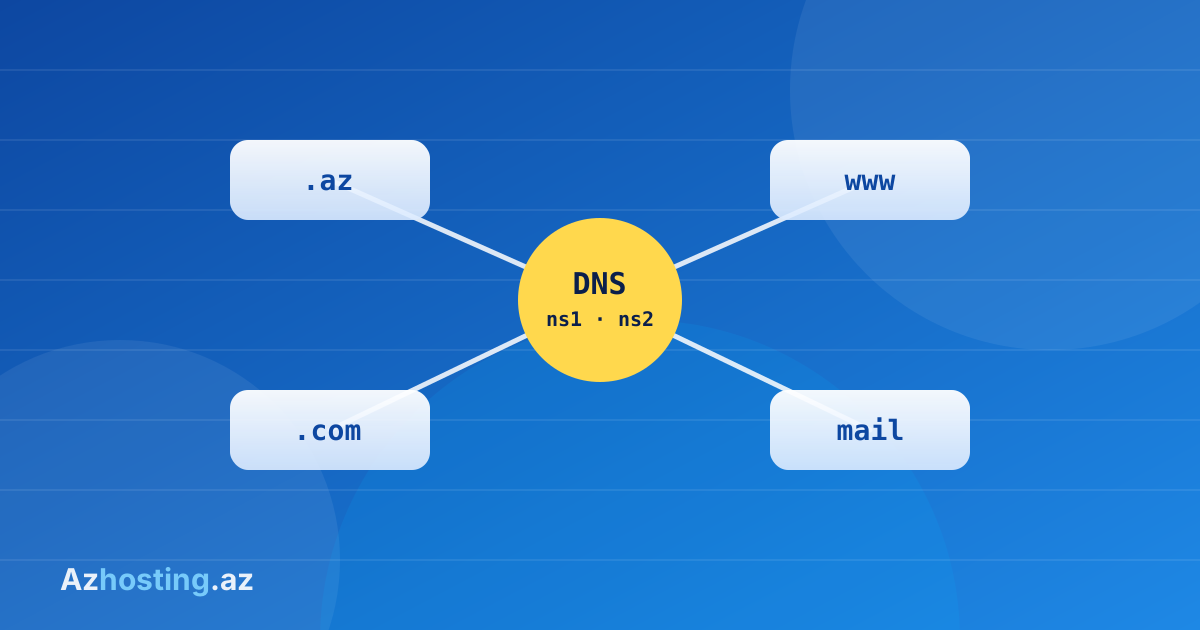
To connect a domain to hosting you need to change its nameservers. A step-by-step guide, how to verify, and common mistakes.
A domain is your website's address and hosting is its home. Nameservers (DNS servers) connect the two. After buying hosting, you need to replace the domain's nameservers with the hosting provider's.
Azhosting.az nameservers
- ns1.azhosting.az
- ns2.azhosting.az
Changing them from your account area
- Log in to your account area and open your domain order.
- In the DNS (nameserver) section, enter the two nameserver addresses.
- Save.
The system checks what you enter:
- Nameservers must be in a valid format, for example ns1.example.com
- The two nameservers must be different
- If you enter an IP address, only IPv4 is accepted
- The nameserver must be found in DNS. If not, a warning is shown
For domains registered through Azhosting.az, the change is always applied automatically.
When does it take effect?
DNS propagation usually takes from a few minutes up to 24-48 hours. During this time your site may open from the old or the new server. This is normal.
Verification
You can check on your computer with this command:
nslookup -type=NS yourdomain.az
Common mistakes
- Typing http:// before the nameserver
- Adding a trailing dot or space
- Entering the same nameserver twice
- Forgetting to remove the old nameserver
- If you use email, forgetting to check the MX records after changing DNS